guide
PDF Redactor Guide: Uses, Steps, and Alternatives
· pdf · redact pdf · guide · how to
When to use PDF Redactor, step-by-step instructions, use cases, and alternatives — plus links to related Toolkase tools.
Related tool: PDF Redactor — Mask private PDF areas with rectangles and circles.
Open toolThis practical guide covers when to use PDF Redactor, how to get a good result, and what to try next in the Toolkase toolbox.
What PDF Redactor is for
Mask private PDF areas with rectangles and circles.
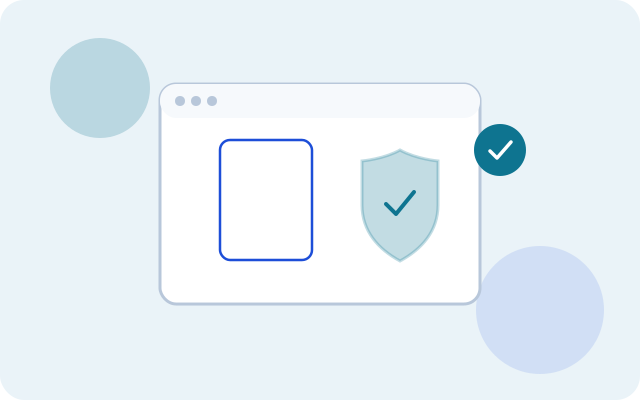
Black out or mask sensitive regions on PDF pages with rectangles and circles — entirely in your browser. Pages you mask are flattened in the export so covered content is not left selectable underneath.
Primary searches this guide supports include redact pdf and black out pdf.
Step-by-step
- Choose a PDF.
- Go to each page that needs masking and draw rectangles or ovals.
- Download the redacted PDF. Unmasked pages stay as normal PDF pages.
Open the live tool anytime: PDF Redactor.
Good use cases
- Preparing packets for email without a desktop Acrobat license
- Cleaning scans before sharing with a client
- Extracting or rotating pages from a long statement
- Building a single PDF from images or multiple files
Alternatives (and when to pick them)
- Desktop apps — best for heavy daily editing with lots of files
- OS built-ins — fine for occasional jobs when you already know the workflow
- Upload-based websites — convenient, but avoid for sensitive inputs
- Toolkase browser tools — fast, private-by-default for one-off and recurring light work
Tips for private PDF work
- Prefer desktop browsers for large files; phones can run out of memory.
- Keep originals until you confirm the download looks right.
- Chain tools when needed — for example split first, then merge, or rotate before exporting images.
- Treat upload-based PDF sites as a last resort for IDs, contracts, and tax documents.
Pair with related Toolkase tools
FAQ-driven decisions
If you only remember one thing: for file tools, prefer no-upload processing. Then use PDF Redactor when the job matches.
FAQ
- Do you upload my PDF?
- No. Preview and export run locally with PDF.js and pdf-lib.
- Is this permanent redaction?
- Masked pages are burned to images in the download, so covered text/graphics are not left as selectable PDF content on those pages. Unmasked pages are copied unchanged. Always review the export before sharing.
- Does Toolkase upload my files when I use PDF Redactor?
- No. PDF Redactor is privacy-critical: processing stays on your device and files are not uploaded to Toolkase servers for this workflow.
- Is PDF Redactor free on Toolkase?
- Yes. PDF Redactor runs in your browser with no account required.
- Do I need to install software to use PDF Redactor?
- No. Open the tool page in a modern browser and work there — nothing to install.