guide
How to Merge PDF Files Without Uploading Them (Private & Free)
· pdf · merge pdf · privacy · no upload
Combine multiple PDFs in your browser with no upload. A step-by-step guide, how to verify privacy, and when local merge is safer than cloud tools.
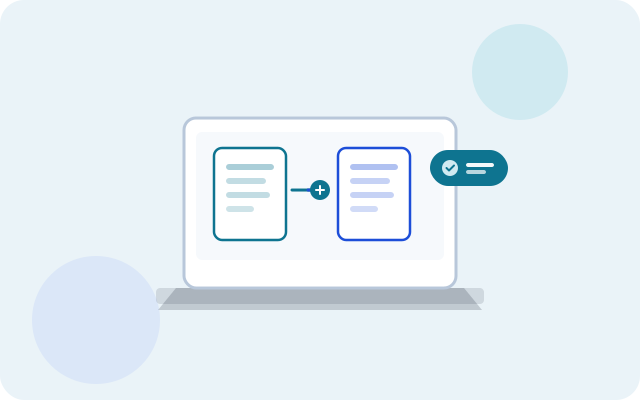
Related tool: PDF Merger — Combine multiple PDFs into one file in your browser.
Open toolNeed to combine PDF files into one document without sending them to a stranger’s server? You’re not alone. Contracts, tax forms, medical records, and ID scans should stay on your device — yet most popular “merge PDF online” sites still upload every file you drop in.
This guide shows a private approach: merge PDFs in your browser, with nothing uploaded, using Toolkase’s free PDF Merger.
Why “merge PDF without uploading” matters
When a site says it will merge your PDFs “online,” the usual flow is:
- Your files are uploaded to their servers.
- A program on that server combines the pages.
- You download the result — and hope they delete the originals on schedule.
That model is convenient for non-sensitive papers. It is a poor fit for anything confidential. A temporary copy on someone else’s disk creates risk: misconfiguration, breach, insider access, or legal retention you never agreed to.
A browser-local merger flips the model. The merge library runs on your computer. Files are read into memory in the tab, combined there, and saved back to your downloads folder. Close the tab and the working copies are gone with it.
How to merge PDFs privately in your browser
1. Open a no-upload PDF merger
Go to the Toolkase PDF Merger. The tool is free, needs no account, and is built to process files on your device.
2. Add two or more PDF files
Click to choose files or drag them onto the page. Add every PDF you want in the final document — cover letter, attachment, appendix, and so on.
3. Put the files in the right order
Drag to reorder so pages appear in the sequence you need. This is usually faster than fixing order later in a desktop editor.
4. Merge and download
Click Merge, then download the combined PDF. The result is a normal .pdf file you can email, archive, or print.
That’s the whole workflow: add → reorder → merge → download, without an upload step.
How to verify that nothing was uploaded
Don’t take privacy claims on faith. After the page has loaded, you can spot-check yourself:
- Open your browser’s Developer Tools → Network tab.
- Filter to Fetch/XHR (or watch all requests).
- Run a merge with a small test PDF.
- Confirm that no request carries your document as a payload.
Another practical test: once the tool page has fully loaded, turn on airplane mode (or disconnect Wi‑Fi) and try merging again. If merge and download still work, processing is not depending on a remote upload API.
Browser merge vs cloud merge vs desktop apps
- Cloud “merge PDF online” — files usually leave your device. Fine for non-sensitive, quick jobs.
- Desktop apps (Preview, Acrobat, etc.) — files stay local. Best for frequent work on one machine.
- Browser-local tools (Toolkase) — files stay on your device, no install. Best for sensitive docs with a simple web UI.
If you already live in Preview or Acrobat, keep using them. If you want the convenience of a website without the upload tradeoff, use a tool that runs the merge in the browser — like Toolkase PDF Merger.
Tips for a clean merged PDF
- Name files before merging so order is obvious (e.g.
01-cover.pdf,02-contract.pdf). - Prefer under ~50 MB on phones; very large PDFs can stress mobile memory even when processing is local.
- Check page rotation first if some scans are sideways — use PDF Rotate or PDF Reorder when you need finer control.
- Split before merge if you only need certain pages from a long file — try PDF Splitter.
When you should refuse to upload
Skip cloud mergers when the PDFs include:
- Passports, driver’s licenses, or other ID
- Bank statements, tax returns, or payroll
- Medical or insurance records
- Unsigned or signed contracts
- Anything covered by workplace confidentiality rules
In those cases, local processing (browser or desktop) is the safer default. For a deeper look at risk and verification, read Is it safe to merge PDFs online?.
Merge PDFs without uploading — try it now
Open the free PDF Merger, drop in your files, and combine them on your device. No account, no watermark from Toolkase, and no server-side copy of your documents.
Want the wider playbook across Windows, Mac, and browser options? See How to combine multiple PDFs into one file.
FAQ
- Can I merge PDF files without uploading them to a website?
- Yes. Use a browser-local tool such as Toolkase PDF Merger, which combines files in your tab with pdf-lib so documents never leave your device. Desktop apps like Preview or Acrobat also keep files local.
- Is Toolkase PDF Merger free?
- Yes. You can merge PDFs without creating an account. Processing runs in your browser.
- How do I know a merge tool is not uploading my files?
- Watch the Network panel while merging, and try merging after disconnecting from the internet once the page has loaded. If no document upload appears and offline merge still works, the tool is processing locally.
- Is there a limit on how many PDFs I can merge?
- Browser-local tools are limited by your device memory rather than a server upload cap. Very large files may be slow on phones; prefer smaller batches when possible.